Guide · ChatGPT Business Hub
ChatGPT Business Hub: claiming and verifying your business
How to find your company, get management access, complete verification and organise its presence in ChatGPT — with plain instructions and real screens.
A prospective customer can use ChatGPT to work out which solution they need, compare companies or find information before getting in touch. For a business this creates a practical need: the details that describe it must be correct, clear and up to date.
The Business Hub is OpenAI's environment through which an eligible business can claim its listing, pass the required checks and manage the information it provides. OpenAI introduced Businesses in ChatGPT in beta on 10 November 2026. Because it is a new service, screens and availability can change.
The goal here is simple: to let you follow the process even if you don't know what DNS, a TXT record or verification means. Every technical term is explained in plain words, and wherever you need to work with the person who manages your website, you'll find a ready-made message to send them.
Before you start: "claiming" means requesting the right to manage a business listing inside ChatGPT. It is not setting up a company, registering with a chamber of commerce, buying a domain or trademarking a brand. It also doesn't give you exclusive control over every piece of information ChatGPT may use about your company.
Dashboard access, submitting details and final approval are not the same state.
1 What you can achieve with this guide
This guide covers the whole path: from searching for the company to completing the profile and reading the statistics. It assumes no technical knowledge and promises no visibility, traffic or sales. A listing is infrastructure; the result also depends on your offer, your website and your team's response.
About the screenshots: the images are real captures from the Business Hub using a sample business. They were taken while verification was under review, so they do not show a completed approval. The screens for sending a code, adding DNS and the Persona check are described from the official guidance, without fabricated screenshots.
2 The different stages and the key terms
The biggest source of confusion is the word "verification". In practice there is no single button that completes everything. There are different checks, with different purposes.
| Stage | What it means in plain words | What it does not prove on its own |
|---|---|---|
| Finding the listing | The company appears in search results. | That you have the right to manage it. |
| Claiming the business | You ask to be recognised as the owner or an authorised representative. | That the Persona identity check is complete. |
| Connection verification | You prove access to a business phone, email, domain or Shopify. | That you already have every feature or the blue badge. |
| Persona identity check | A check of your identity and, where requested, your authorisation follows. | That submitting equals approval. |
| Approved profile | You can use the management features allowed for the business. | That a Business Agent is available in your country or category. |
| Publishing a Business Agent | An optional, separate stage for eligible businesses. | That an advertising campaign has started. |
The platform may combine some of these steps or show them in a different order. The point to remember is that access, submission and approval are not the same thing.
A short glossary
| Term on screen | What it means |
|---|---|
| Business listing or profile | The business listing, a digital card with its details. |
| Claim | Requesting to manage the listing. |
| Verify / Verification | Checking that what you declare can be proven. |
| Domain | The name of the website, e.g. example.com. |
| DNS | The technical settings that connect the domain to services (website, email). |
| TXT record | A text entry in the DNS settings that can prove control of the domain. |
| Persona | The identity-check service the process sends you to. |
| Pending / Under review | The request is pending or being reviewed. |
| Insights | Statistics and aggregate activity information. |
| Product feed | An organised file or link that carries product data. |
Don't confuse it with the ChatGPT Business subscription. ChatGPT Business is a plan for teams to use ChatGPT in a shared company environment. The Business Hub is about the business's presence inside ChatGPT. Similar names don't make them the same product.
3 What applies to a Greek business
Greece is among the countries where ChatGPT is supported. That does not mean every Business Hub feature is available to every Greek business. Location, type of activity and available checks affect eligibility.
| Case | What you need to know (16 November 2026) |
|---|---|
| Eligible online business | The official guidance provides for claiming or adding where the service and required verification are supported. Check the actual path shown in your account. |
| Local shop or restaurant | The Help Center currently mentions claiming an existing listing only in the US. Don't assume a Greek local listing is automatically eligible just because it appears in search. |
| Business Agent | Official availability covers eligible e-commerce and online-service businesses in the US, with a website. In the Greek example a region restriction appeared. |
| Product feed | Access to the Products section does not prove your market is supported. Verification and a check of the specific connection and the markets it supports are needed. |
If what you see differs from the official description, keep a screenshot and ask support to confirm availability for your country and category. Use your company's real details; don't choose another country to get around a restriction.
4 What you need before you start
Open a note and gather the following. It is a preparation list, not a claim that every field will be required.
- The name customers know you by — for the first search.
- The official company name — if it differs from the brand, keep both forms.
- The website — open it, make sure it works, note the full address.
- Business phone and email — who has access and can receive a code.
- Correct address and country — don't copy an old address without checking.
- Proof of legal representation — Persona may ask for ID, registration details or proof of representation.
- The domain owner — if DNS is needed, you must know who can add a record.
- Logo and short description — needed when profile editing is allowed.
Decide in advance who will manage it. Treat access as a company responsibility with a named owner. If you work with an agency, agree who makes the initial claim and who updates it day to day. Partners should use their own accounts through the available invitations — not a shared password.
Do the process from a computer, with a browser (Chrome, Safari or Edge), so you can keep the email and the guide beside you. If identity verification asks for a phone or camera, follow those instructions when they appear. Don't plan around a specific approval time: filling in the steps and reviewing the request are different things.
5 Signing in to the Business Hub
- Open your browser and go to the address bar.
- Type
https://chatgpt.com/business-huband press Enter. - If a sign-in page appears, sign in with the account you chose for management.
What you should see: an environment titled Business or Business Hub. If the account already has a business, it appears in the list; otherwise you may be taken to start adding one. The official guidance also mentions entry from the ChatGPT sidebar; if you can't find it there, use the direct link.
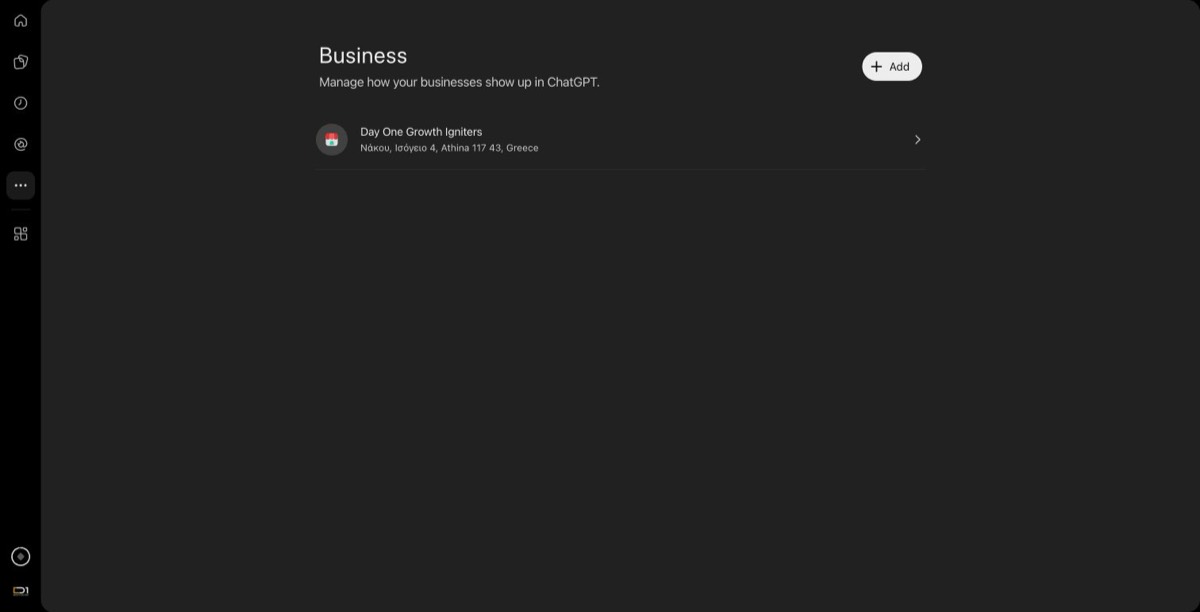
Before you continue, confirm which email you use for ChatGPT. A listing connected to a different account may not appear where you look for it later. If you received a personal claiming invitation from OpenAI, open the link in that email and sign in with the address that received it; it is not a general link to forward to your team.
6 Searching for and choosing the right company
- In the business list, press Add (in another version: Add business).
- Find the Search business field.
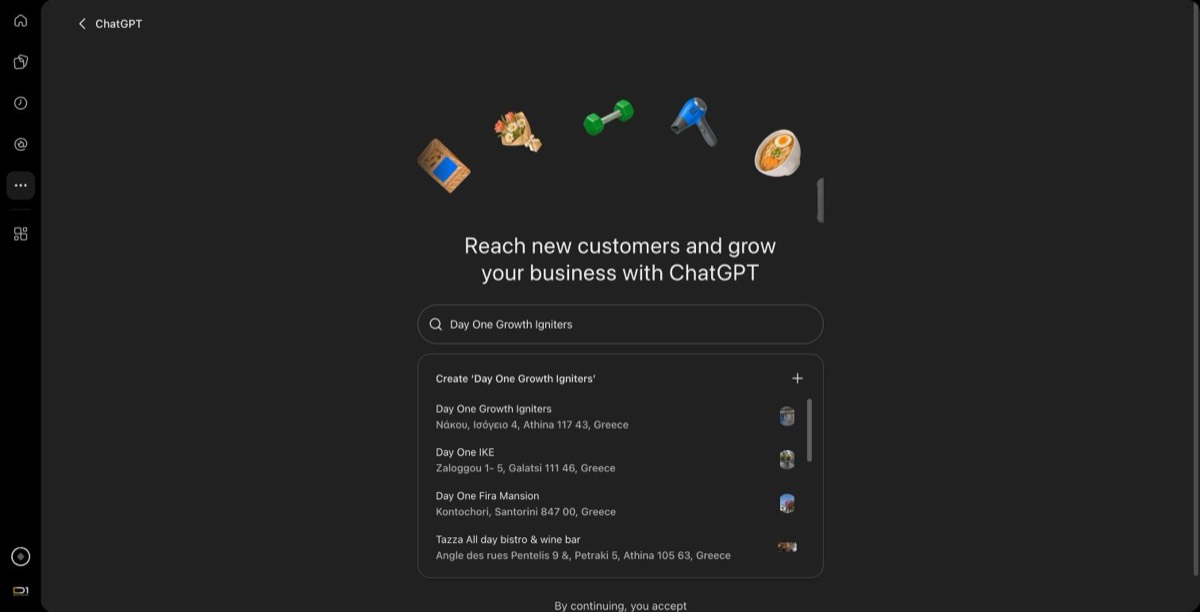
- Type the name as customers see it.
- Wait for the search to finish.
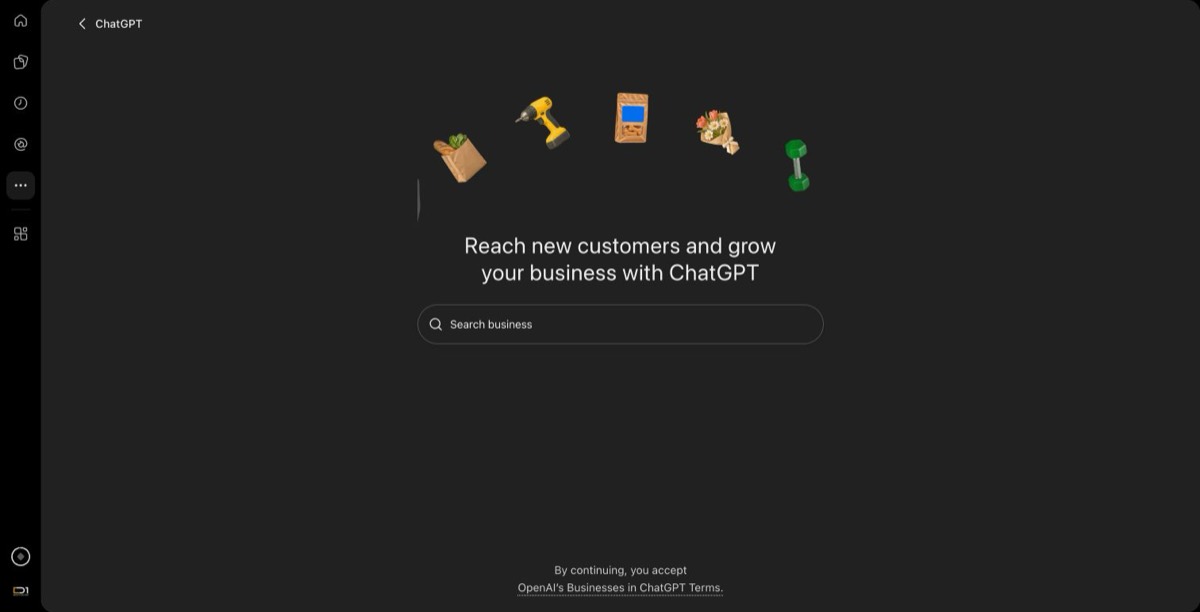
In the example, the search returned businesses with similar words too. So it isn't enough to press the first result that "looks right".
- Read the full name.
- Check the city and address.
- If a website or phone appears, compare it with yours.
- Choose the listing only when you are certain.
You may be asked whether to continue with the current account. Read the email; if it's wrong, go back and sign in to the right account. Where terms acceptance appears, open and read the Businesses in ChatGPT Terms. The rest should be done by someone authorised to represent the company.
If the company is already connected to your account, you may be taken straight to its dashboard — no new claim is needed. Check the outstanding items there.
7 If the company is missing or already claimed
It doesn't appear in the results. Try the full trading name, the official name or the spelling used on the website. Check whether you added an extra word or searched only a very generic part.
The app may show a Create option with the name you typed. The official guidance provides for adding an eligible online business when there is no listing; the button appearing is not approval in itself. If you continue, fill in the real details the form asks for — brand, official name, website, country, contact. Don't invent details to move on.
If you run a local shop in Greece and no supported path is offered, use support. Don't create a second listing for the same company to get around the problem.
The listing is locked. If Contact support appears, follow it and explain which company it concerns, in what capacity you represent it, and which message you see.
Someone else has claimed it. First check internally (partner, employee, previous agency). If there is no authorised access, the official path is the three-dot menu and Dispute ownership, where available; an authorisation check through Persona will be requested. It is not a process for renaming someone else's listing.
8 How to choose a verification method
Follow the methods the platform shows. You aren't guaranteed to see every option below; availability depends on the specific listing.
| Method | What you need | When it is practical |
|---|---|---|
| Business phone | Access to the business phone shown. | When you can receive an SMS or automated call. |
| Business email | Access to the email linked to the business. | When that inbox is checked promptly. |
| Website domain | Access to DNS settings or help from their administrator. | When the website is controlled by the company and this method is offered. |
| Shopify store | Authorised access to the right store. | When the business uses Shopify and the connection is offered. |
Choose the method for which you already have the right access. If you don't have access to the email shown, don't wait for a code you can't read. If there is no other method, ask support for help.
After submitting: watch the account's email. OpenAI may approve the request or ask for more information. Receiving a code does not mean all later checks are complete.
9 Verifying by phone or business email
With a business phone
- Choose Business phone, if shown.
- Read the number the platform shows and confirm who will receive the code.
- Choose SMS or an automated call, depending on the options and your phone.
- If the number reaches a reception desk, tell them a verification message or call will arrive.
- Press Get code, enter the code in ChatGPT and follow the confirmation.
For a landline, use the call option if offered and you can receive it. A phone system, diversion or automated menu can make receipt harder. If the code doesn't arrive, check the number and the way it's received before requesting new codes. Use the most recent code of the active attempt.
With a business email
- Choose Business email.
- Check the address shown — you can't use just any personal email.
- Press Get code.
- Open that email in another tab, keeping the Business Hub open.
- Check the inbox and, if needed, Spam.
- Take the code, return to the verification tab and enter it.
If the email is old or managed by someone who has left, fix access first or use another available method. Creating a second business profile doesn't fix the problem. Use codes only on the screen that requested them — not in a description, a screenshot or a message to support.
10 Verifying your website with DNS and a TXT record
This method sounds harder than it is. ChatGPT gives you a specific piece of text; you or your technician add it in a special place in the domain's settings, and ChatGPT checks that it is there. Think of it as an agreed marker in the website's "technical address book".
Step 1 — Choose Website domain. Read the instructions; the important part is the DNS record you're asked to add.
Step 2 — Copy the record details exactly.
| Field | What it is | What you enter |
|---|---|---|
| Type | The record type. | TXT, as requested. |
| Name or Host | The point of the domain where it is stored. | Exactly the value from the screen, in your provider's format. |
| Value or Content | The verification text. | The full actual value the Business Hub gave you. |
| TTL (if shown) | Caching of the record. | Your provider's default, unless other instructions are given. |
Don't copy a code from an article, an example or another company's screenshot. The value must come from your own active process. Don't decide on your own that Name must be @, www or the whole domain — DNS platforms don't all fill in names the same way.
Step 3 — Find who manages the DNS. The person who edits website text doesn't necessarily have DNS access, and the company you bought the domain from isn't always the service hosting the active records. The right question: "Where do we manage the active DNS records for our domain, and who can add a new TXT record?"
Step 4 — Add a new record.
- Sign in to the provider that manages the active DNS.
- Open the specific domain.
- Find the DNS / DNS records section.
- Add a new record of type TXT.
- Fill in Name/Host and Value/Content per the Business Hub instructions.
- Check for copy errors, extra spaces or a doubled domain.
- Save.
You add the requested record; you don't replace records already serving email or the website, and you don't change nameservers. If you can't tell the new record from the existing ones, assign the change to the domain administrator.
Ready-made message for your technician
Hi, we want to verify the company domain in the ChatGPT Business Hub. Please add the following new record to the active DNS:
Domain: [the real domain] Type: TXT Name / Host: [the exact value from the Business Hub] Value / Content: [the full exact value from the Business Hub]
Please check the correct Name format for the provider so the domain isn't added twice. Only the new record is needed, without changing the existing website and email records. Let me know once it's saved so I can finish the check. You don't need to send me a password.
Step 5 — Return to the Business Hub. Once the record is saved, press Verify domain and read the result. If it isn't detected immediately, check the record's correctness with your technician and give propagation time. DNS changes can take time; don't treat an unsuccessful first press as proof of failure.
If it doesn't complete, check in turn: correct domain, active DNS provider, TXT type, correct Name, full Value, saved record. Ask your technician to confirm the record is visible from a public DNS lookup. Don't remove the record right after success without guidance — and remember that domain verification does not replace the Persona identity check.
11 Verifying through Shopify
This applies to businesses that use Shopify and see the option. You don't need to move your shop to Shopify to claim an eligible business.
- Choose Shopify store → Connect Shopify.
- Read the permissions requested.
- Log in to Shopify with an authorised account.
- If you manage several stores, check carefully which one you connect.
- Follow the instructions until you return to the Business Hub and see the result.
Connecting a store, connecting a product catalogue and publishing a Business Agent are different features. One successful step does not automatically enable the rest.
12 Persona identity check and waiting for approval
After you get access to the profile, you may see a message asking for identity verification with an official document. Management isn't necessarily complete just because you confirmed email or domain.
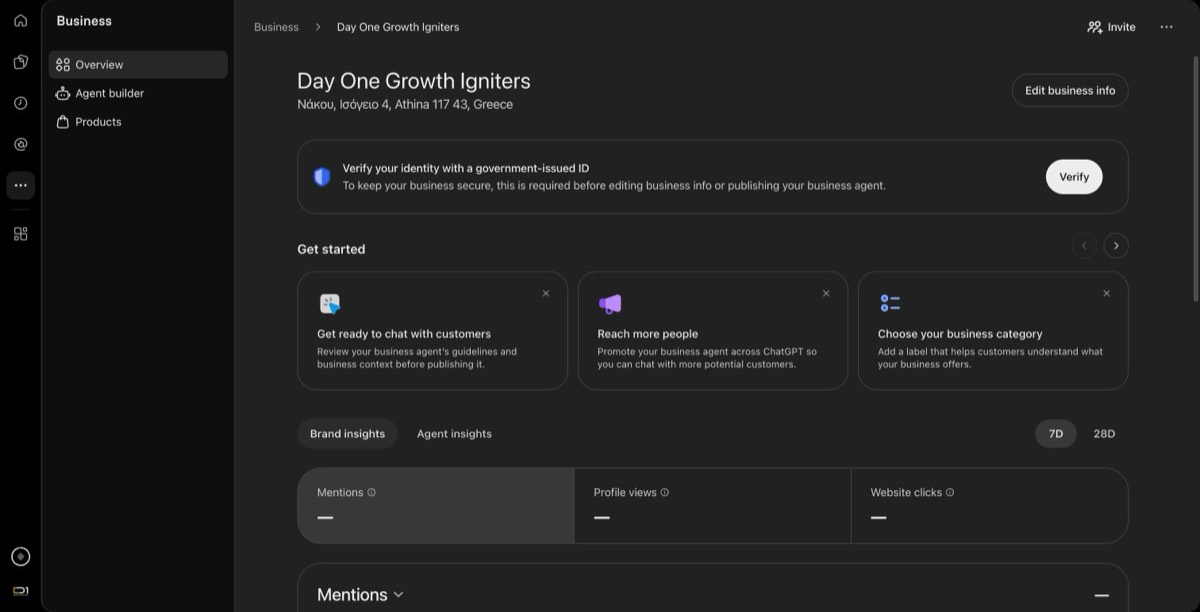
Step 1 — Start from the profile. Open the Business Hub, choose the company, find the completion message and press Verify (or Verify with Persona), then Continue to Persona. Read the guidance on what data is requested before submitting.
Step 2 — Fill in what is actually requested. You may need an official ID document, company registration details and proof of authorisation. The accepted documents, countries, file types and order of checks are set by the active Persona process; don't assume everyone sees the same screens. If a document photo is requested, follow the guidance for a clear, complete, readable image. Don't submit a third party's details for a check in your name. Where company name, address, registration number or tax number are requested, use official details — the chamber-of-commerce number and the tax number (VAT) are not the same thing.
Step 3 — Check before submitting. Is the company right? Do the details match the documents? Does the applicant have the required authorisation? Have you read what happens after approval?
Especially for a new profile via Persona: according to the Help Center, OpenAI's approval automatically publishes the new profile — there is no separate publish button. So the details meant for public display must be ready before you proceed. Publishing a Business Agent remains a separate action.
Step 4 — Wait for the result. After submitting, a message may appear saying verification is under review. It is not a success message and it is not, by itself, a rejection.
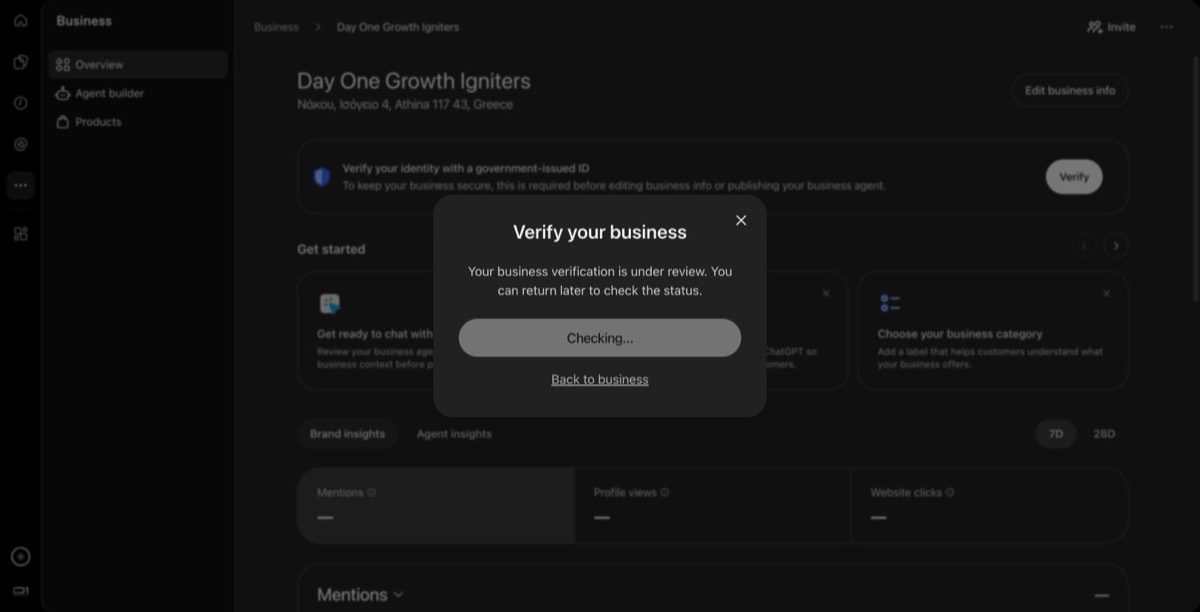
Watch the email for the decision or a request for additional details. You can return to the profile and use Check status, where shown. Avoid cancelling and resubmitting just because it hasn't been approved yet.
Completion means the verification is approved and the status is updated accordingly. The blue badge is tied to the approved Persona, not to a simple claim — and approval doesn't bypass country or category limits for other features. If you get an approval email but the screen stays locked, check you are in the right profile and account; if the mismatch persists, contact support.
13 Filling in the business profile correctly
After the approvals, open the company and choose Edit business info or the equivalent edit action. If an identity message appears again, check its status before continuing.
The information you can manage includes, depending on the profile, website, description, category, logo and delivery/returns policies, and possibly a cover image. Follow the fields on your own screen.
Website and contact. Copy the website from the browser after opening it. Check that it leads to the company and works without an internal login. Note: verifying a domain successfully does not mean the website is saved in the profile field — check that separately.
A description that helps the customer. First answer four questions: what you offer, who you serve, where you serve, what sets you apart. Join the answers into a short, clear paragraph. Avoid generic phrases like "cutting-edge, high-quality, customer-focused solutions".
Hypothetical example (furniture company): "Akmi Workspace designs and builds office furniture for small and medium businesses. It handles space planning, furniture selection and installation in Attica. Interested customers can request a quote through its website." The example shows the structure; it is not a real company and must not be copied verbatim.
Category and images. Choose the category that describes the core activity — not a more popular one you think brings visibility. For the logo, use the company's real file and check the preview at small size. For dimensions and file types, follow the active form.
Delivery and returns policies. If you sell products, the policies must match the shop: shipping areas, cost, time, returns, exceptions. Don't invent more favourable terms. The Businesses in ChatGPT policies require accurate, up-to-date details, truthful claims and relevant links.
Saving and checking. Re-read the content, check links and contact details, use the save/submit action and see whether the platform confirms saving, pending review or publishing. OpenAI reviews changes and their appearance may be delayed; a saved change doesn't mean every answer will update immediately.
14 Products and product feeds
If you sell products, you may see the Products section. A product feed is an organised data catalogue: each product carries name, description, link, image, price and availability. If you provide services and only want to manage the profile, you don't need to create artificial products.
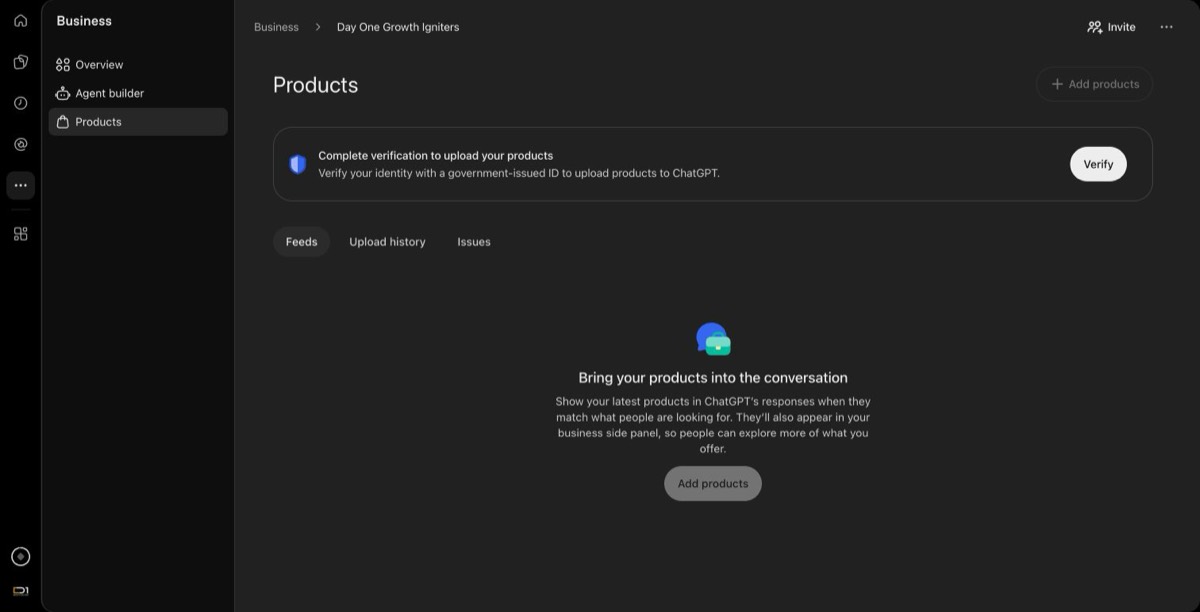
When the feature is available: confirm the checks are approved, open Products and follow the available path (Shopify, a CSV file or a hosted feed link). If you use a URL, it must point to the feed file itself, not the site's home page. After submitting, check processing status and errors, and compare sample products with the website (price, currency, availability, variant, photo).
Note for Greek e-shops: the specification checked states that the standard OpenAI-format upload currently targets the US and that additional markets require confirmed support. Don't assume that entering GR or prices in euros enables Greece, and don't change the real business's country to pass a check. A feed connection doesn't guarantee products appear, doesn't enable a Business Agent by itself and doesn't mean checkout inside ChatGPT.
15 Business Agent and limitations
A Business Agent is a conversational experience that represents the business and uses the information it provides. The conversation is marked as separate from ChatGPT's independent answers.
For Greece, don't start from the assumption that you can already publish it. On 16 November 2026, official availability covered eligible e-commerce and online-service businesses in the US. In the guide's profile the menu existed, but its content showed a region restriction.
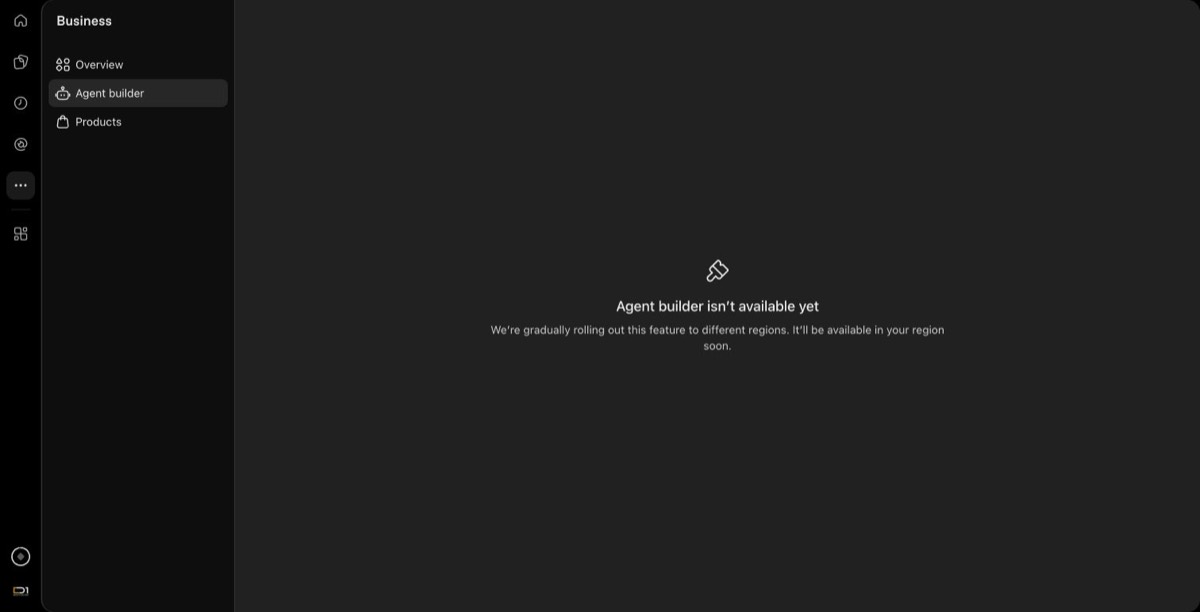
If your business is eligible: after the approvals, open the agent or the creation flow, check the information it will use and write instructions that accurately describe the company, products, limitations and when to hand over to a person. Before publishing, test with questions like: "Which product fits this need?", "What is the difference between the two options?", "What is the delivery cost?", "What applies to a return?", "How do I talk to a person?". If data is missing, the correct behaviour is to state the limitation or point to the right page.
Publishing is a separate Publish action — previewing and saving are not publishing. According to the Help Center, the current experience explains products and policies and points to the website; it does not complete purchases or bookings. Don't design it as a full commerce system without confirming capabilities.
Relation to ads. Claiming a profile, publishing an agent and paid advertising are separate processes. You don't need a campaign to claim an eligible business; a "Reach more people" prompt doesn't mean any spend has started.
16 How to read the statistics
In the profile checked, the statistics were under Overview, in the Brand insights tab, with 7- and 28-day options. The Help Center describes data for the last 28 days. Always compare the same time windows.
| Metric | How to read it |
|---|---|
| Mentions | For an online business, a mention of its website — simply mentioning the name isn't enough. For a local business, a result shown for that specific location. |
| Profile views | An opening of the specific profile inside ChatGPT. |
| Website clicks | Clicks to the business's website link. |
| Discovery topics | Aggregate topics from answers where the business was mentioned — not individual customer questions. |
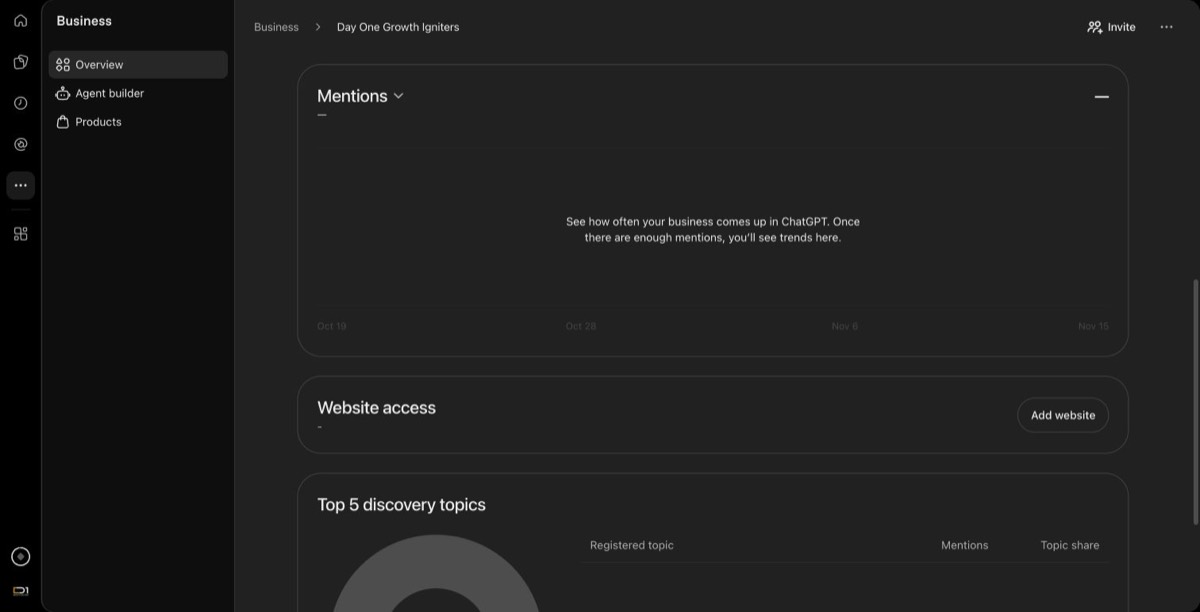
If you see dashes or Unavailable, don't record zero automatically. The activity threshold may not have been reached, data may still be collected, or the report may not be available. Businesses don't receive individual conversations or users' individual prompts through these statistics. If the data stays empty after approval, use support.
Connecting to a real result. Clicks are an intermediate step. To assess value, compare what you see with your own website's traffic and conversion data. Record which enquiries are relevant and which become customers. Don't expect an exact match between tools — definitions and time zones differ. Keep a change log (when you added the right website, when you improved the description) so you can interpret changes with context.
17 Team access and external partners
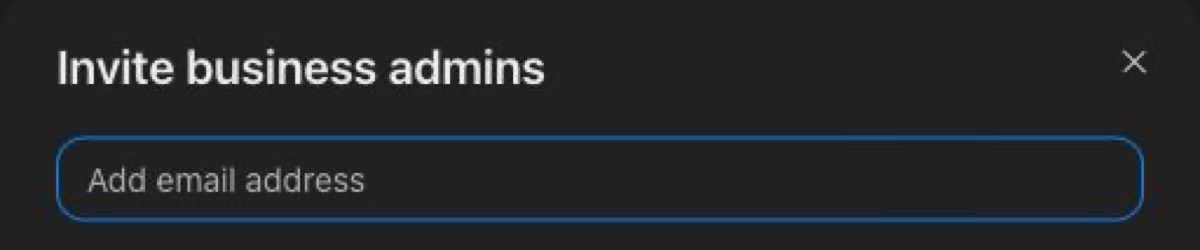
In the example screen there was Invite, top right, opening an "Invite business admins" form with an email field. The title matters: this is management access, so choose carefully who needs it.
- Open the correct business profile.
- Press Invite or the equivalent member-management option.
- Enter the email the partner uses for their own ChatGPT account.
- Check the recipient and the access level to be granted.
- Send the invitation only after confirming it's the right person.
- Ask them to complete any acceptance and confirm they see the right business.
If the profile was created inside a company workspace, the invitee may need to be a member of the same workspace. If an agency invitation is blocked, support can clarify the options. Don't forward a personal claiming invitation to add a partner.
In a small business a simple split is enough: the owner approves the official details, one person keeps the profile up to date, and the technician handles only the technical access.
18 Common problems and solutions
When something doesn't proceed, first read the on-screen message. A pending approval, a technical error and a country restriction need different handling.
| What you see | First action | When to ask for help |
|---|---|---|
| You can't find Business Hub in the menu. | Open the direct link and check the account. | If an unavailability or access message persists. |
| You can't find the company. | Check spelling, official name and any existing listing. | If no suitable add path is offered. |
| There are many similar companies. | Compare address, website and phone. | If you can't tell which one is your company. |
| The listing is already claimed. | Check whether an authorised partner took it. | If Dispute ownership or access resolution is needed. |
| Contact support appears. | Use the offered path for the locked listing. | At the same step, with the exact message and company details. |
| The code email doesn't arrive. | Check the address, Spam and the active attempt. | If there is no access to the address or an alternative method. |
| The SMS or call doesn't arrive. | Check the number, reception and phone system. | If every available receipt option fails. |
| The domain doesn't verify. | Check active DNS, TXT type, Name, Value and propagation. | After the technician confirms the record is publicly visible. |
| Persona says Under review. | Wait for the decision and watch the email. | If there is a persistent status problem. |
| Persona was rejected or expired. | Read the email guidance and check the official details. | If you can't retry the check or it's unclear what to fix. |
| You have access but can't change details. | Check whether the required identity check is complete. | If there is approval but the screen still blocks. |
| Products is locked. | Read the verification message and confirm the status. | If approval is complete and the problem persists. |
| Agent builder is unavailable. | Check whether the message is about region, category or pending approval. | If you need eligibility confirmed for your business. |
| Statistics show dashes. | Don't convert them to zero; check approvals and the time window. | If unavailability persists. |
| A change saved but doesn't appear everywhere. | Check whether it awaits review/publishing and allow time. | If a mismatch persists after publishing. |
| A partner invitation is blocked. | Check the right email and any workspace requirement. | If agency access is needed and the invitation isn't supported. |
How to contact support properly. Open help.openai.com, use the chat icon bottom right (when shown), explain that it concerns the Business Hub and a business listing, and give the account email, company name, website, country and the exact step you're stuck on. Add the date, time, time zone and a screenshot without codes or sensitive documents.
Ready-made request template
Hi, I need help with our business listing in the ChatGPT Business Hub.
Business: [name] Website: [address] Country and type of activity: [details] ChatGPT account email: [email] Capacity of representation: [role]
At the step [description] the message appears: [exact message]. The problem occurred on [date and time, Europe/Athens].
I have already checked [short description]. I attach a screenshot without sensitive data. Please confirm the appropriate next step and whether the path is supported for our business.
19 Completion check and practical maintenance routine
Don't mark the work "done" just because you opened the Business Hub. Use the checklist.
- I have chosen the right company and location.
- I know which account has management.
- The claim is approved or the pending item is recorded.
- Persona is approved or I know exactly what stage it's at.
- The website in the profile is correct and works.
- The description and category reflect the real activity.
- Contact details and policies are up to date.
- I've checked whether changes were published or await review.
- Partners have the necessary, confirmed access.
- I've separated the optional features from the mandatory pending items.
- I haven't promised visibility, traffic or sales from the listing alone.
| Stage | Action | Completion point |
|---|---|---|
| Preparation | Gather details and name an owner. | You know who has email, phone, DNS and authorisation. |
| Submission | Correct listing choice and available verification. | There is a clear result or a recorded pending item. |
| After approval | Check website, description, category, contact. | The profile describes the business correctly. |
| First measurement | Record statistics with date and time window. | You have a baseline without calling empty charts zero. |
| Review | Check changes and connect to qualitative enquiries from the website. | You know what needs improvement and who handles it. |
The routine is about your company's internal organisation, not an OpenAI approval timeline. If approval is pending, move the actions that depend on it. After setup, set a short monthly check and update immediately when address, phone, website, services or policies change.
20 FAQ and useful links
Do I need an ad account or an Enterprise agreement?
Not to claim an eligible business. The ChatGPT Business subscription is a different product; if a separate paid service appears, check its own terms.
Do I have to be the owner?
You can be the owner or an authorised representative; you must be able to prove the authorisation when asked.
Does claiming guarantee ChatGPT will recommend us?
No. The official terms guarantee no position, ranking, visibility, traffic or sales. The profile helps you manage the information you provide.
If I buy ads, are the independent answers affected?
OpenAI separates sponsored placements from ChatGPT's answers; advertising doesn't affect the independent answers.
Is verifying the domain enough?
Domain verification is one method of proving a connection; the Persona check is still needed for features that require it.
Will I see customers' conversations?
No. Insights are aggregate and don't give access to individual prompts or conversations.
Can I manage many brands/locations as one?
The Help Center mentions separate management of distinct brands and that claiming the main brand doesn't automatically claim its locations. Central management of all is not described as available; if you have a network, ask for the right path before creating profiles in bulk.
Can I delete the profile?
The official guidance allows deleting only an unpublished draft (three-dot menu → Delete draft) and states that support cannot delete, unpublish or hide a published profile in a setup/ownership request. Check public details carefully before a process that leads to publishing.
Do I need a developer?
Search, choosing the company and the description need no programming. For DNS, a correct product feed or a specific technical problem, work with the person who manages your domain or shop.
How quickly will it be approved?
There is no universal guaranteed time. Keep the submission date, watch the email and answer any request for additional details.
Why do my screens look different?
The product is in beta and availability can differ by account, country, business type and verification state. The screenshots are a reference point from 16 November 2026; prioritise the platform's current guidance.
Start here: chatgpt.com/business-hub · Support: help.openai.com · Service status: status.openai.com.
The screenshots show real states of the app and contain no codes, identity documents or personal forms. The interface design belongs to OpenAI.